Installing on the client
The normal way GUI
-
Open Windows Update
Click Start, then Settings, then Windows Update. Or press Windows + R and type
ms-settings:windowsupdate. -
Install the offered update
When an update is waiting the page says "Updates available to download". Click 1 Download & install all, or 2 Download & install next to one update. Allow about 15 minutes.
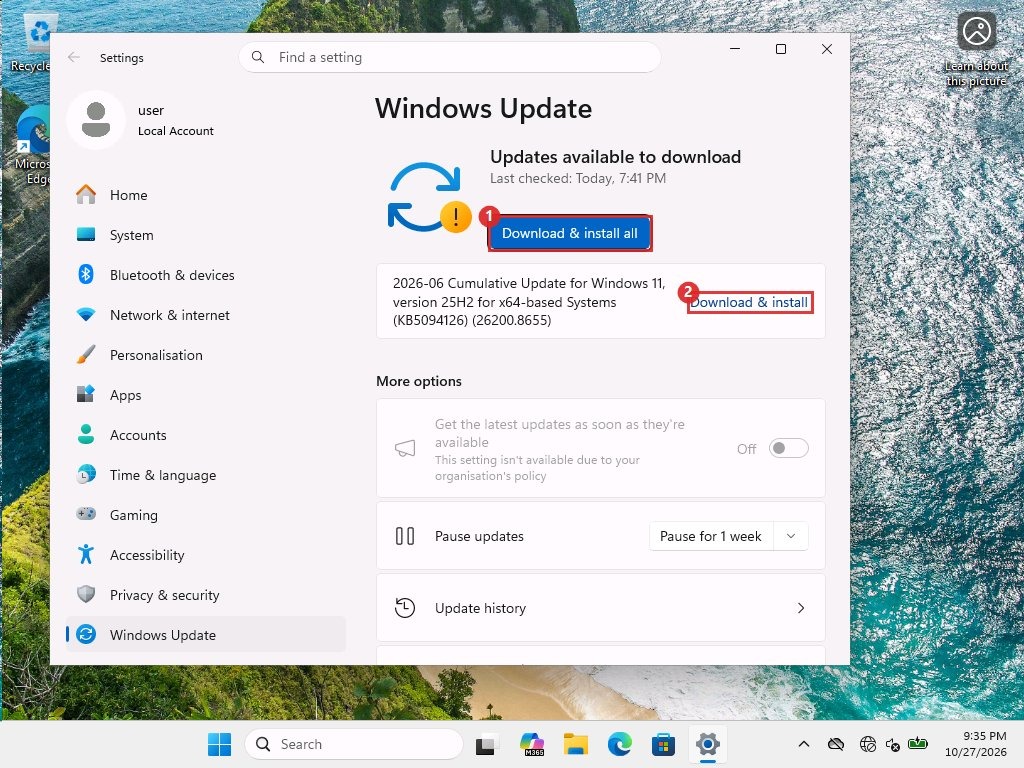
Update waiting. The month shown is June because this is the lab's own page from earlier. Yours shows the month you approved. -
Restart and wait
When it asks, click Restart now.
Leave it alone
After the restart, do not sign in, open a console or run commands for about 25 minutes. Judge by the screen or the heartbeat going quiet, not just the clock. Our first April attempt rolled back after an automated sign-in during the restart. The retry, left alone, worked. The cause was never proven, but waiting costs nothing.
-
Check the build number
Press Windows + R, type
winver, press Enter. The box shows 1 the build. July 2026 is 26200.8875.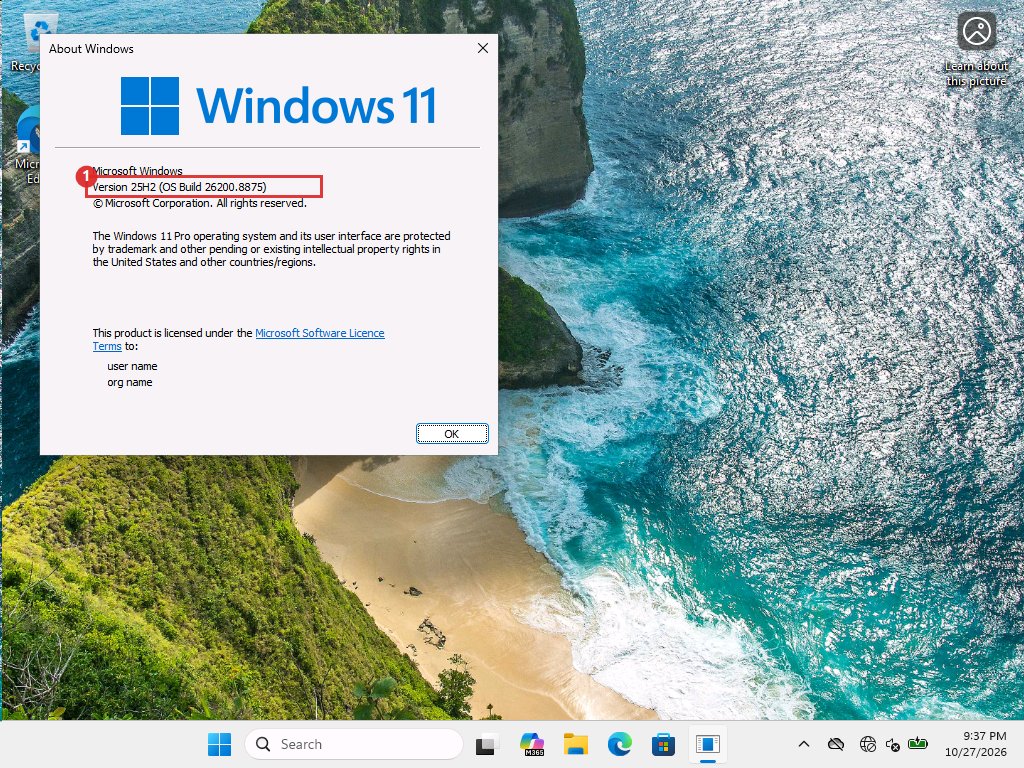
About Windows. This is the most reliable check. -
Confirm nothing else is offered
Open Windows Update again. The finished state reads "You're up to date". The greyed line 2 "Get the latest updates as soon as they're available" with the organisation policy note shows the WSUS policy is active. Click 1 Check for updates to scan again.
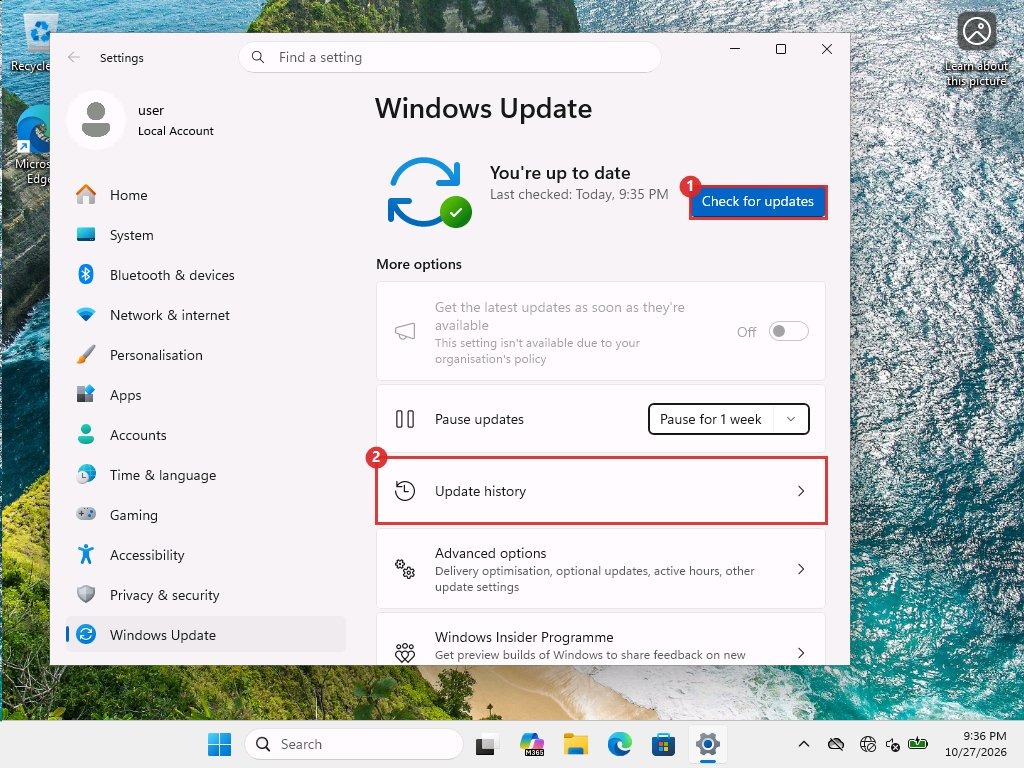
Finished state. Box 2 is Update history.
Two things Settings got wrong in our lab
- Stale offers. After July was installed, the Settings page still listed the June update as available. A scan from Windows Update's own COM interface said there was nothing to install. Running
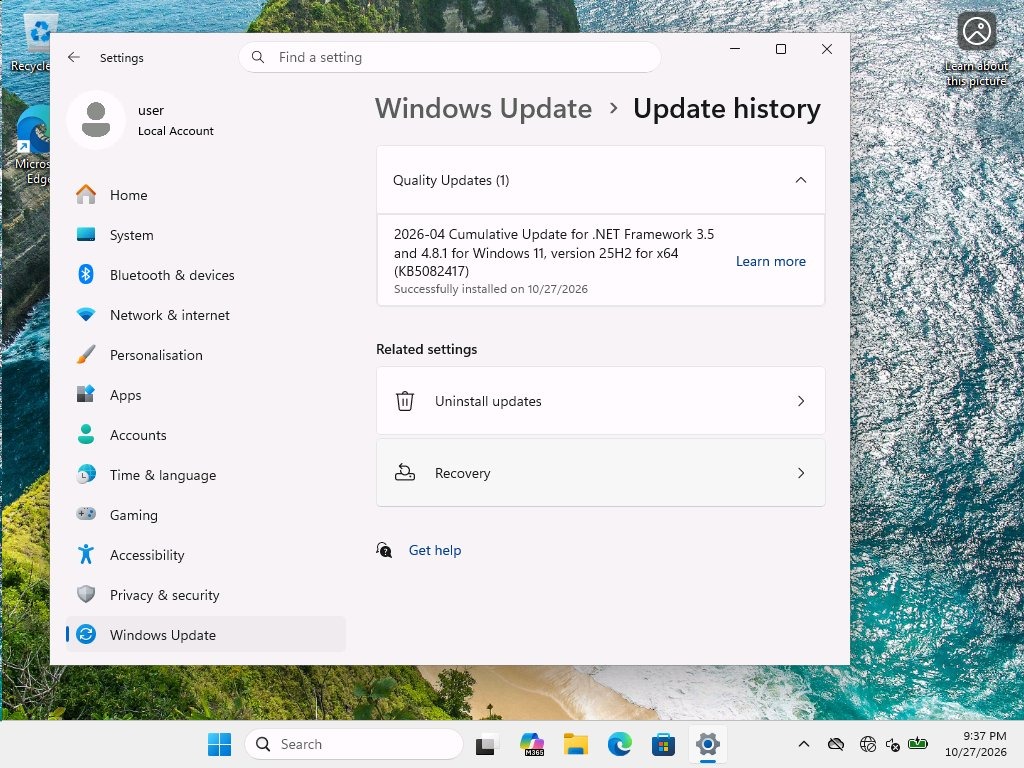
usoclient StartInteractiveScaninside the signed-in session made the page show "You're up to date". The cause is unproven. - Incomplete history. The Update history page listed only the .NET update, not the cumulative updates we installed with the script. Do not use it to prove an install. Use
winver.
Before you install
- Take a checkpoint of a VM client, or have a working backup for a physical one.
- Back up the BitLocker recovery key if the client uses BitLocker. Web reports of the June and July updates mention BitLocker recovery prompts on some machines.
- Check free space on C: and how full the EFI system partition is. Our lab client had a 260 MB one. Web reports blame small EFI partitions for the June failures, but we never measured ours.
The scripted way CLI
Use this when you want a log and a script that waits for the update to be offered, instead of clicking through Settings. Sign in on the client as an administrator and run script 10 from an elevated PowerShell window. It scans, waits until the update is offered, downloads it from the offline server, installs it, and prints and saves a log.
-
Open PowerShell as administrator
Right-click the Start button and click Terminal (Admin) or Windows PowerShell (Admin). Click Yes on the permission box. The window title says Administrator. A window that is not elevated cannot install updates.
-
Save script 10 GUI
Type
mkdir C:\Tempin the window. Click Start, typeNotepad, right-click it and click Run as administrator. Paste script 10 from Script library, change the KB number on the first line, click File, Save as, set Save as type to All files, and save asC:\Temp\wu-install.ps1. -
Run it
powershell on the client, as administratorpowershell -NoProfile -ExecutionPolicy Bypass -File C:\Temp\wu-install.ps1The window prints each step as it goes, and the same lines are saved in
C:\Temp\wu-install.log. Leave the window open until it printsDONE. If the update is not offered yet, the script rescans once a minute.
The same checks from the command line:
$cv = Get-ItemProperty 'HKLM:\SOFTWARE\Microsoft\Windows NT\CurrentVersion'
"Build: $($cv.CurrentBuildNumber).$($cv.UBR)"

(New-Object -ComObject Microsoft.Update.Session).CreateUpdateSearcher().QueryHistory(0,5) |
  ForEach-Object {
    "{0:g} code={1} hr=0x{2:X8} {3}" -f $_.Date, $_.ResultCode, $_.HResult, $_.Title
  }

$r = (New-Object -ComObject Microsoft.Update.Session).CreateUpdateSearcher().Search("IsInstalled=0 and IsHidden=0")
"Still offered: " + $r.Updates.Count
Success is the expected build (July 2026 is 26200.8875), a history entry with code=2 and hr=0x00000000, and nothing left offered.
If it is not offered yet
The first scans after approving and resetting returned 0 updates in both April and July. The update showed up after about 20 minutes. Keep rescanning before you assume something is broken. Script 10 waits and rescans once a minute.