Verify and troubleshoot
Use the console and client evidence together. A reachable port or a successful installer does not by itself show that registration, policies and definitions work.
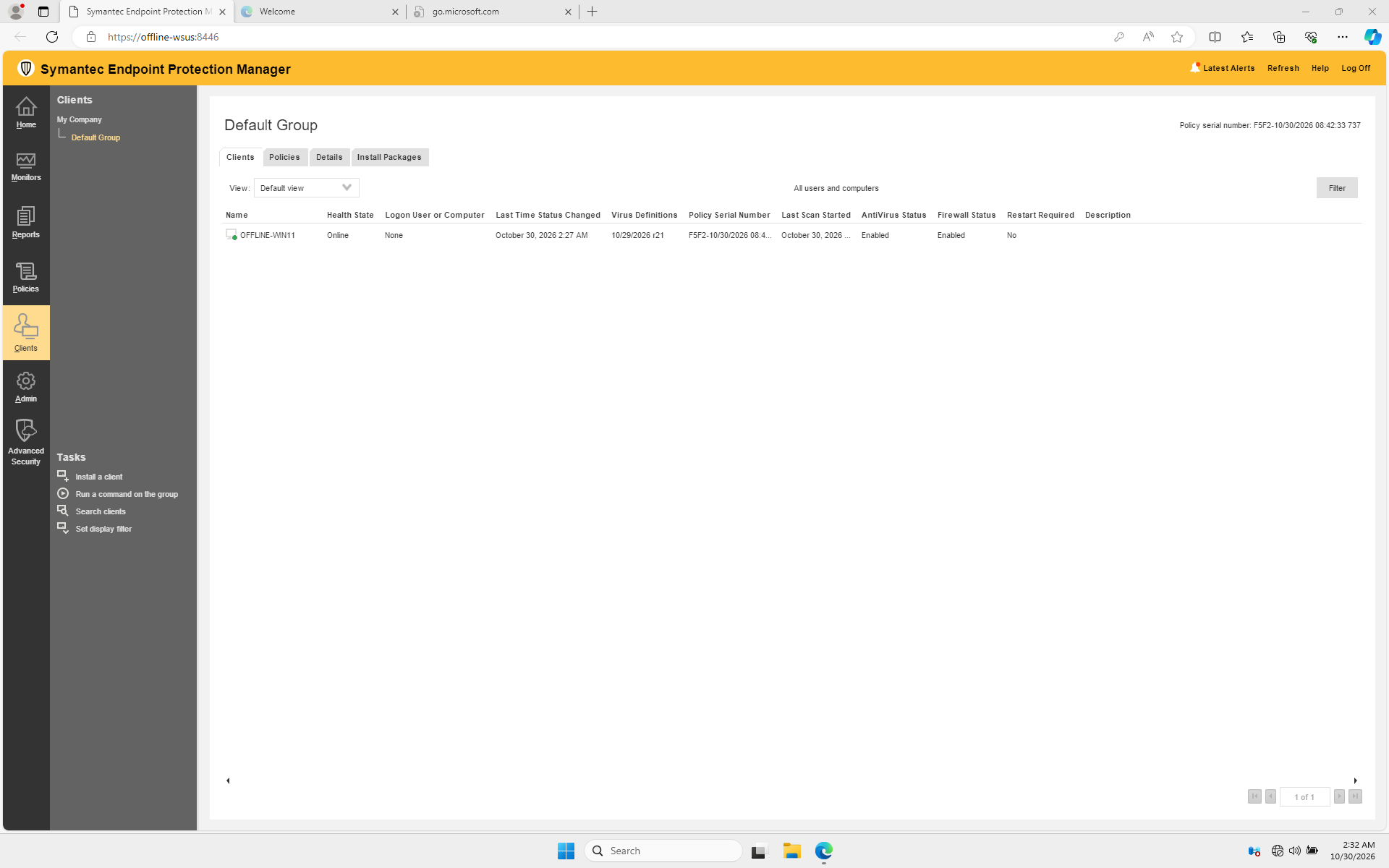
Acceptance checklist
| Check | How to verify | Lab result |
|---|---|---|
| Manager is available | Sign in to the SEPM web console and check the manager and SQL Express services. | Manager services and SQL Express running. |
| Client is registered | In Clients → Default Group, refresh and find the client. | Windows 11 client appeared Online. |
| Client communication | Check the client connection status or the registry value below. | Online to manager on TCP 443, with error codes 0;0. |
| Antivirus content | Compare the manager and client definition revision. | Manager 261029021; client 20261029.021. |
| Existing WSUS | Check the WSUS service and client access to its configured port. | Service running; TCP 8530 reachable. A Windows update installation was not repeated. |
| Network isolation | Inspect guest adapters, routes, gateway and host-side connectivity. | Neither guest had a default gateway; the Hyper-V host shared the internal switch. This alone does not establish a production air gap. |
Check the client-to-manager connection
On the client, open an elevated PowerShell window and read the status documented by Broadcom:
$path = 'HKLM:\SOFTWARE\Symantec\Symantec Endpoint Protection\SMC\SYLINK\SyLink'
Get-ItemProperty -LiteralPath $path -Name CommunicationStatus |
    Select-Object -ExpandProperty CommunicationStatus
The semicolon-separated value includes the last successful and attempted connection, server and port, error codes, and an online indicator. Broadcom describes a final 1 as online and 0 as offline. Use its article to interpret the complete value. The client GUI also shows connection status under Help → Troubleshooting.
To request a fresh heartbeat, run the following from the installed client directory, adjusting the path if necessary:
If the path is different, locate smc.exe in the installed client directory. Allow time for policy and content processing after the heartbeat.
Common problems
The client does not appear in the console. Select the package's target group and refresh. Confirm the installation completed, the client service is running, the manager name resolves to the isolated server, and the actual client communication port is reachable. The lab used 443. Check CommunicationStatus; a successful TCP test alone is not registration. See Broadcom's communication troubleshooting.
The client is online but definitions are missing. Confirm the .jdb matches the client's version and type, compare its vendor hash, and check the manager inbox and content folders. Trigger a heartbeat and allow time for the content to be applied. The manager may display the client as out of date when other content types are unavailable; see JDB limitations.
The manager's JDB import fails. Check for .err files in the manager inbox, verify the download and transfer hashes, confirm available disk space, and consult Broadcom's update troubleshooting. Do not delete content or databases as a first troubleshooting step.
WSUS is unreachable after installing SEP. Check WSUS and IIS status, the client firewall policy, and the actual configured WSUS port. TCP 8530 was reachable in this lab, but an end-to-end update install is a separate test. Refer to WSUS troubleshooting.
A component shows disabled or malfunctioning. Inspect the client and manager alerts and verify the corresponding content type is present. File-based antivirus definitions do not include every protection component. In particular, see Broadcom's SONAR and tamper protection note.
Before production
Validate licensing, certificates, backup and restore, SMTP and password recovery, component-specific offline content, a harmless detection test approved by your organization, and a Windows update install with SEP enabled. Review the host's resource capacity and Broadcom's current requirements. Protect manager backups and client packages because they contain site configuration and key material.