Update definitions offline
This procedure carries a certified file-based antivirus definition set to the offline manager. SEPM processes the .jdb file and makes the content available to its managed clients. Broadcom also publishes separate .jdb content for IPS and SONAR; those content types were not tested in this lab. See Broadcom's JDB procedure.
1. Download on the connected side
-
On an internet-connected computer, open the Broadcom Security Center definitions page.
-
Locate Symantec Endpoint Protection Manager installations and the certified Core 3 SDS
.jdbmatching the installed client version, architecture and client type. The lab used the standard 64-bit 14.4 client and Broadcom'score3sdsn64package. Do not use a Dark Network or low-bandwidth package unless it matches the installed client type. -
Download the file to a staging folder. If the browser changes its extension to
.zip, rename it back to.jdbas Broadcom directs. Do not extract it. -
Compare the file hash with the trusted value on Broadcom's download page when supplied. Also record a SHA-256 hash so you can detect changes during the transfer:
Broadcom's page can publish an MD5 value; use the matching algorithm when comparing against the vendor's value. A hash copied alongside the file does not by itself establish authenticity.
-
Transfer the file using approved media. Scan the media and follow your organization's handling rules before it enters the isolated network.
2. Import on the offline manager
Find the actual SEPM installation directory. The default 64-bit installation location is C:\Program Files (x86)\Symantec\Symantec Endpoint Protection Manager; the lab used a custom data-drive location.
-
Copy the
.jdbfile to a staging folder on the manager and compare its SHA-256 hash with the value recorded on the connected side. -
Copy the file into the manager's
data\inbox\content\incomingdirectory beneath the actual installation directory. For a default installation, the path is:Broadcom recommends copying the file into this directory so that permissions are inherited correctly. Allow the manager to process it before adding another file.
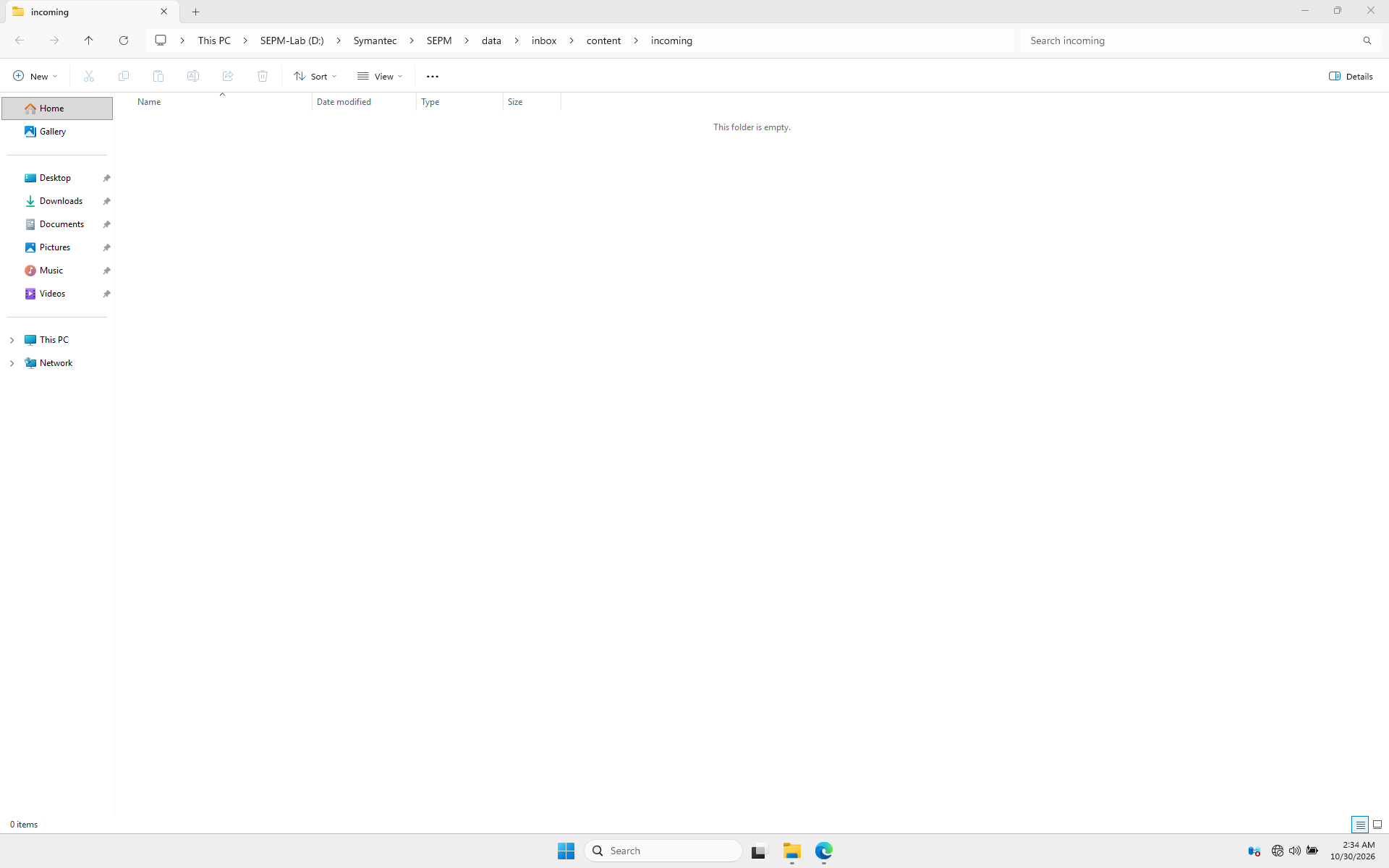
The lab used D:\Symantec\SEPM\data\inbox\content\incoming. The folder is empty after processing; check the client too. -
Watch the inbox. The file should disappear when SEPM processes it; disappearance alone is not proof that every client updated. Investigate
.errfiles or content processing errors if present. -
In the console, check Admin → Servers → Local Site → Show LiveUpdate Downloads. You can also inspect
Inetpub\content\ContentInfo.txtunder the installation directory to identify the content folder for your client version. In the lab, the relevant 64-bit Core 3 folder gained revision261029021.
3. Verify the client
-
In Clients, open the client's group and refresh the view. Check the client is online and note its Virus Definitions date and policy serial number.
-
Allow the normal heartbeat to occur. If you need to prompt one, run
smc -updateconfigon the client; Broadcom says this triggers the same heartbeat as Update Policy in the client tray menu. See Broadcom's heartbeat note. -
Verify the client actually has the expected revision. The lab client received
20261029.021after its forced heartbeat. Record the actual date and revision from your own run rather than assuming a successful file copy updated the endpoint.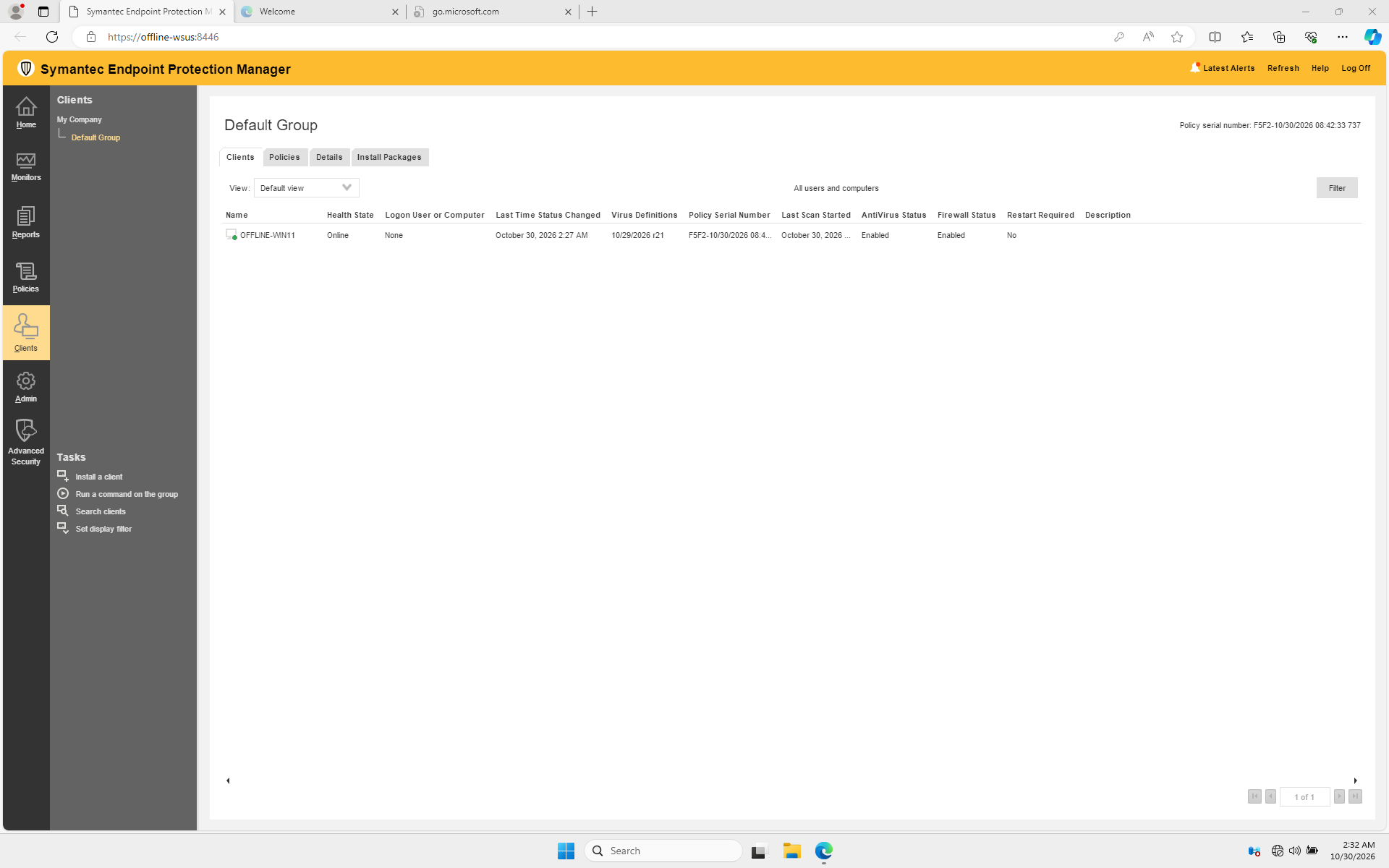
After the update, the Virus Definitions column shows 10/29/2026 r21 for the online Windows 11 client.
Limits of the JDB method
Broadcom lists file-based antivirus, IPS and SONAR as content available through .jdb files. Its offline status article says Download Protection content is not available in JDB form, so the dashboard can remain Out-of-date even when the antivirus definitions were applied. Broadcom also documents a SONAR dependency for tamper protection. Plan and test every protection component needed by your environment; this lab verified only the antivirus JDB path.